When documenting buildings in Archicad, created by Graphisoft, it is common to show level information for floors, slabs, ceilings, and structural elements. Archicad includes several options for displaying these heights. You can show the top and bottom levels of most elements relative to Project Zero, the first reference level, the second reference level, or Sea Level. However, one important option is missing. Archicad does not provide a simple way to show levels relative to the floor level when documenting ceilings.
For many architects and designers, this becomes an issue when trying to display finish ceiling levels, also known as FCL, measured directly from the finish floor level, also known as FFL. In practice, ceiling levels are frequently communicated as a height above the finished floor surface, but Archicad does not offer a built in method to do this automatically.
For complex ceiling setouts such as concrete soffits with varying beam soffit depths, wet area setdowns above, and slab folds, the need becomes even greater. Accurately documenting the height of the underside of structure relative to a specific structural or finished level is essential, and Archicad’s default tools do not provide an efficient way to show these relationships consistently across multiple storeys.
Limitations of Current Workarounds in Archicad
Some users attempt to work around this limitation using one of the two available reference levels, but these reference levels are not flexible enough to handle multi storey projects. They can only be assigned globally and cannot be used per storey. This severely restricts their usefulness.
Another common workaround is manually typing ceiling heights into labels or text fields. While this may appear workable at first, it introduces problems with accuracy and quality control. As the project evolves and storey heights change, manually entered values do not update. Users may not realise that their level marker contains a custom override, which can lead to incorrect ceiling information on drawings.
To avoid these issues, designers need a reliable and automated way to show FCL values measured from FFL in every storey.
Show Levels to a Specific Height Reference Automatically
Archibites Level Marker solves this problem by allowing users to show levels relative to any specific level in the project. Instead of being limited to Project Zero or the two reference levels, you can select the level you want to use as your base. This means you can display the finish ceiling level directly as a height above the finish floor level of the same storey.
With this approach, Archicad becomes far more powerful for documenting ceilings, interior elevations, reflected ceiling plans, and any views where accurate FCL (Finish Ceiling Level) or SCL (Structural Ceiling Level ) values are required.
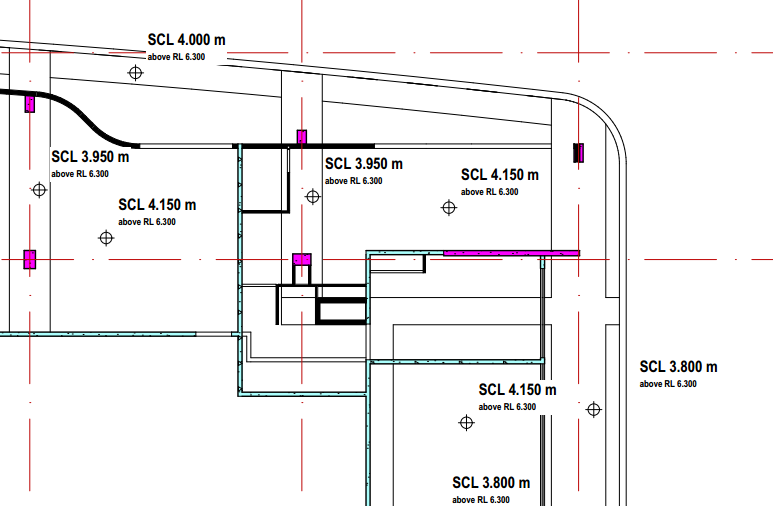
A Label Based Tool With All the Advantages of Archicad’s Built In Marker
Archibites uses a label to achieve the same results as Archicad’s default level marker, but with many more options. The label supports all the graphical features of the built in level marker, including text formatting, pointer styles, automatic alignment, and annotation settings. But it also introduces advanced functions that Archicad users have been asking for, such as referencing FFL dynamically for each storey.
Make Ceiling Documentation Easier and More Accurate
By showing ceiling levels relative to the correct finish floor level, your drawings become clearer, more accurate, and more aligned with real world construction documentation standards. This reduces errors, improves communication with consultants, and helps ensure your Archicad model reflects true design intent.

Learn More and See the Tool in Action
Archibites Level Marker was created to fill a long standing gap in Archicad’s documentation tools. To see the full feature list, visit: