Archibites Parking v5 introduces zones for space allocation graphics and scheduling.
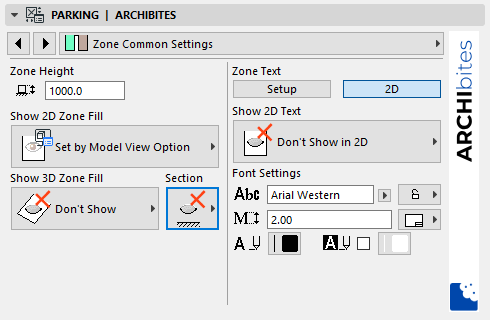
There are 2 main tabs for zones. The ‘Zone Common Settings’ tab contains all settings that are common to all zones. Control here
- Zone height. 3d height
- Show Fill/Form in 2d, 3d, and/or Section/Elevation. You can also set it to display by Model View here.
- Zone Text. All font settings, position of zone text in parking spaces
The ‘Zone Per space’ controls the remaining settings for how each zone types appears. A list of all available zone types are listed (1) called Zone 1,2,3,4. Select a zone to edit it.
Settings are shown for the zone being edited. Set
- Name (2). Shown on plan if set to show in ‘Common Settings’.
- Show in all spaces or Show by hotspot space definition (3).
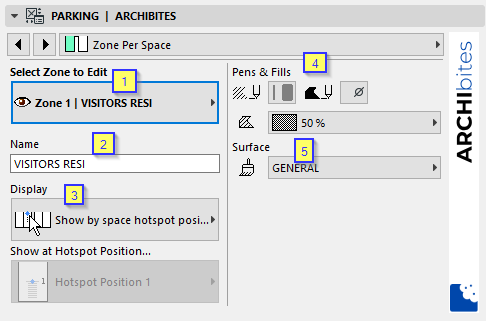
Show by hotspot space definition (3). This enables individual space visibility control. It allows a zone to display if hotspot (B) is in a specific position for an individual space in the floor plan. So zone 4 set to this display type will only display if the hotspot for a space is dragged towards the back of the space on plan to that position.
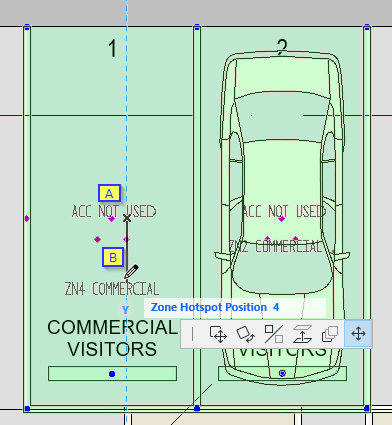
There are also single hotspots (A) on plan that are draggable to the front of the space. These control what accessory the space belongs to an is discussed in another article here.
- Pens and Fills (4)
- For 3D (5)
There can be up to 9 different zones set. Your zones might consist of
- Visitor Parking
- Residential Parking
- Commercial Parking
Model views are also a great way to control the visibility of zones for drawing types. Once set to use model view option within the object settings, model views can be used to show/hide all zones. You might use this to control visibility of zones in 3d for clash detection processes.
TIP: It is recommended to setup all the zones your office typically use. Setting it up per user, in different projects, may result in the same Zone slot being used for different zone types and therefore making it difficult to copy and paste between project.
It is also recommended when changing parking settings you select all parking objects and change all so they have consistent settings.
Scheduling
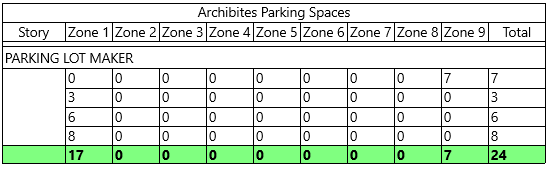
Archibites provides templates for scheduling Accessories and Zones here. With this you are able to schedule each zone and the total number of parking spaces.
When first opened, the name of the zones defaults to the Zone number 1,2,3 etc. You can rename the titles in the schedule as you setup. Unused columns can also be deleted or added back in as needed.
Also check our article on Accessories here.