Archibites Wall Schedule is soon to become part of the NEW Archi Assistant Add-on. The NEW Wall Schedule automates the generation of graphical wall schedules of all walls that are used in the project to your own graphical standards.
Quick Steps:
1. Set Template
Draw a template for one wall type on a unused story. Each template must include a short wall and the Archibites Wall Schedule Template label that defines the boundaries of the template. Add all your own custom lines, fills, labels, etc as you see fit.
Select the template then open Archi Assitants Wall Schedule add and click on ‘New Template from Selection’
2. Set Criteria
Set the criteria for the walls you want included in the schedule by story, layers and composite/id.
3. Get Properties
From this list add the properties you want to included in the generated schedule. Ideally only include what the template shows in text labels.
4. Set Page size
Set the page size, scale and direction of rows. The Schedule will automatically be distributed page by page for easy placement on layouts.
5. Create
Click on ‘Create/Update’ button.
UI Breakdown:
The Wall Schedule Interface
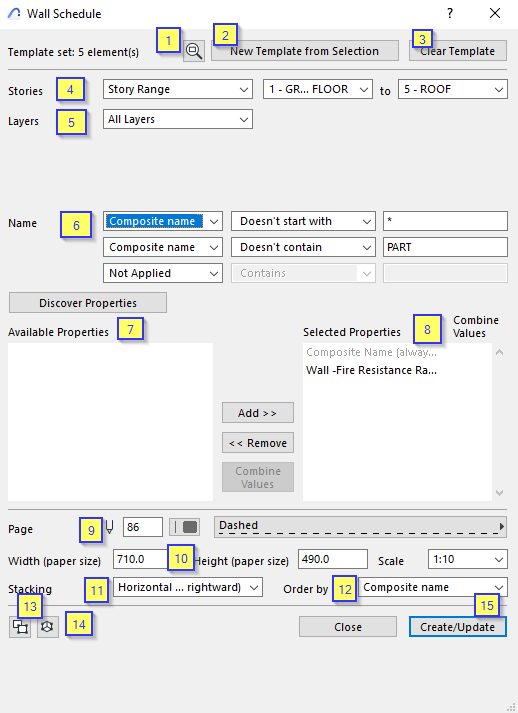
- Zoom to Set Template (1).
- New or Add to Template (2). Select template elements first before opening the dialogue to reset the template OR if nothing is selected, click to add elements one by one. Each template must include a short wall and the Archibites Wall Schedule Template label that defines the boundaries of the template as a minimum. Add all your own custom lines, fills, labels, etc as you see fit.
- Clear Template (3). Clear the selected template.
- Stories (4). All walls on the set stories will be included in the created schedule.
- Layers (5). All walls on the included layers will be included in the created schedule.
- Name (6). Include or exclude walls based on if the walls composite name or ID has *this* text.
- Available Properties (7). List of all properties of walls in the project.
- Select Properties (8). Selected properties of walls in the project will be transfered to each individual wall schedule item. Ideally only include what is shown in the template text labels. Where properties are different, the walls will be listed separately. If 2 or more walls in the project have the same property with different values and the property is a ‘text’ and ‘option with multiple values’, turning on ‘Combine Values’ will combined all the values in one and will not list the walls separately.
- Page graphics (9).
- Page Dimensions (10). Set page size in paper space dimensions and scale. The wall item will be repeated to fill this page size and create multiple pages as needed.
- Stacking (11). Each wall item will be repeated horizontally or vertically within the page before moving to the next row or column.
- Order by (12). Order by Composite Name or Element ID.
- Select wall/s in plan (13). After creating a schedule, click on this button and then select a wall schedule item to see all walls with the same properties in the project in plan. Similar to Archicads Interactive Schedule button.
- Select wall/s in 3d (14). After creating a schedule, click on this button and then select a wall schedule item to see all walls with the same properties in the project in 3d. Similar to Archicads Interactive Schedule button.
- Create/Update (15). Create Schedule.
TIP: Use the included Archibites Wall Schedule labels to
- Turn a 2d wall into a 3d projection.
- Add dynamic dimensions to skins, core and overall.
- Label each skin individually.
- Add text of any property.
- OR use your own custom labels and graphics as part of the wall template to customise it further for your firm.